Overview
Product promotions can apply discounts for all sales of a specific product. This uses the promotional matrix.
You can also create promotions for:
- Customers to apply a discount for a specific customer (or group of customers).
- Categories to apply a discount for all sales of products in a specific category.
B2B online stores will not use product promotions. You will need to create a B2B promotion.
Enable product promotions
-
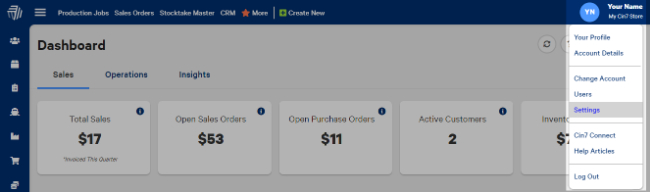
Select your username in the top right and then select Settings.
-
Click on Products and then Product Settings.
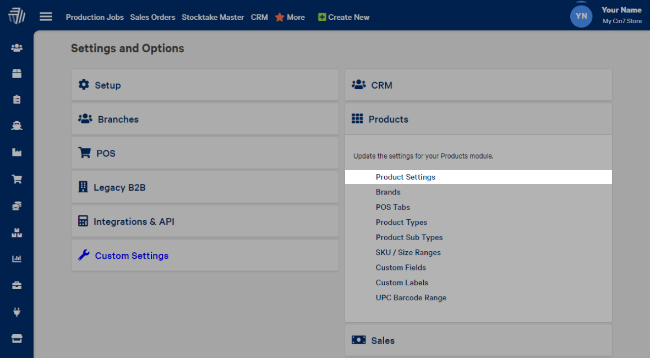
- Change Show Retail Promotional Matrix to Yes and then select Save.
Product promotions
A product promotion will apply to all sales of that product.
- Select Products from the left navigation menu.
- Select the product you want to apply a promotion to.
-
Under Retail Product Promotions, click on the dropdown to choose an existing discount option, or choose Blank to create your own.
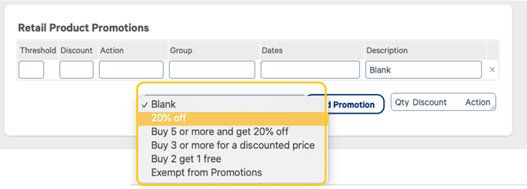
- Select the Add Promotion button. This will insert a new row for your promotion.
- Add the Threshold for your discount. This is the amount of items that must be purchased before the discount is applied.
- Add the Discount amount. This is either a percentage or a dollar ($) amount. For all currencies, you will need to use the $ symbol before the amount.
- Depending on your promotion, you can add an Action (it may appear by default).
-
Exempt
The product will not be discounted by any promotions.
-
Cheapest
This action creates a Buy X products and get 1 free promotion. When multiples of the same product are purchased, one of the products will be discounted 100%.
This promotion only applies to POS transactions.
-
DiscountOnPromotions
This action will add a discount on top of any existing promotions (or special price).
This promotion only applies to POS transactions.
-
- If you want the promotion to run for specific Dates, you can add the start and end date for the promotion. The dates must be in this format:
DD MMM YYYY |DD MMM YYYY
For example, 01 JUN 2022|30 JUN 2022 - Add a unique Description (not used by other product promotions). POS promotions can use the same description (and promotion information) for many products. This will apply the same promotion to a range of products.
- Select Save and Continue to apply the new promotion.