Overview
Keep track of your inventory with WMS Stocktake. When you create a stocktake, you can choose how you want to count (blind or guided) and what locations are included. Once the stocktake is started, your team can count the products, then you can review the variances and complete the adjustments.
Create a stocktake
Administrators or users with the Manager permission can create a stocktake.
- Select the WMS menu, and then select Stocktake.
- Select New stocktake.
-
Enter a Stocktake name and Stocktake date. The Reference is automatically generated (for example, ST-2026-2).
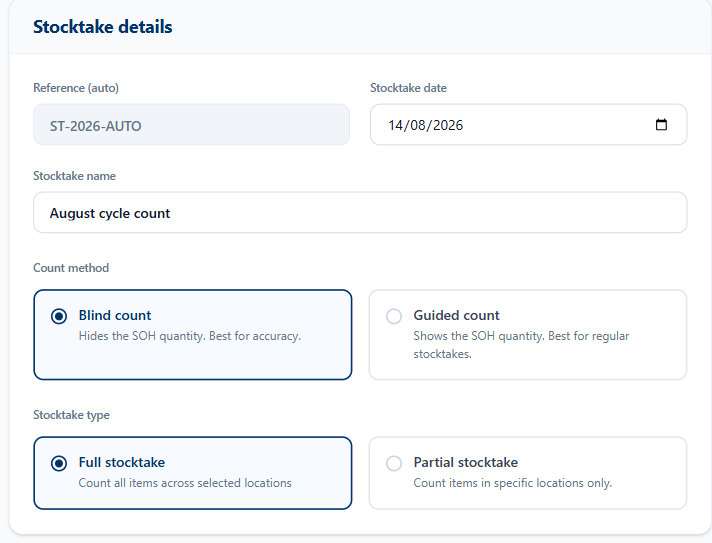
- Choose a Count method:
-
Blind count
Hides the stock on hand amount for each product during the count. -
Guided count
Shows the stock on hand amount for each product during the count.
-
Blind count
- Choose a Stocktake type:
-
Full stocktake
Counts all items across the selected locations. -
Partial stocktake
Counts items in specific locations only.
-
Full stocktake
- For a Partial stocktake, add the location. You can't add or remove locations once the stocktake has started.
- In Search and add a location, enter a location name, then select Select to add it. A location marked All bins adds every bin in that zone.
- To count items that are not assigned to a location, select the Show items without a location checkbox. If you leave it clear, the count includes only the locations you selected.
- Select Start stocktake to make it available for counting, or Save as draft to come back to it later.
Find a stocktake
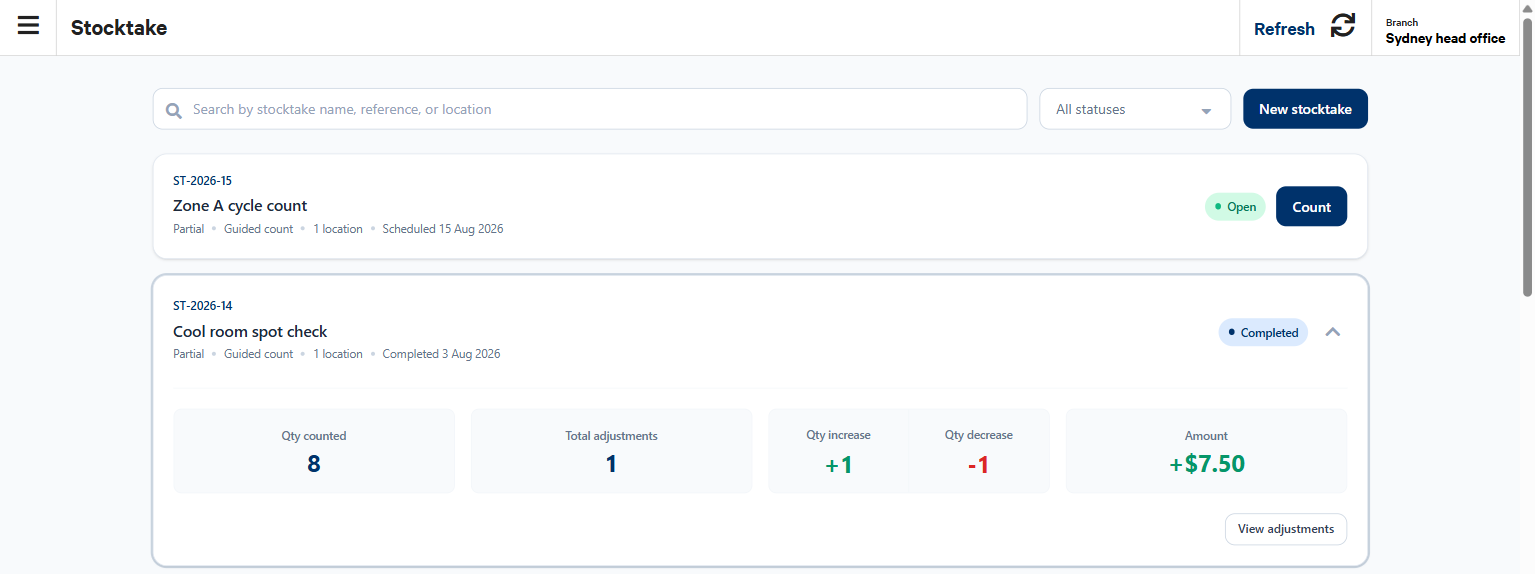
The Stocktake list will show all of your stocktakes (including completed stocktakes). You can search by the stocktake name, reference, or location. You can also filter the stocktakes by their status (All statuses, Draft, Open, Review, Finalize, or Completed).
Delete a stocktake
You can delete a stocktake unless the status is Finalize or Completed.
- Find the stocktake in the list.
- On the stocktake, select the ⋮ three-dot menu, and then select Delete stocktake.
- Then select Delete.