Overview
Counting records the physical quantity of each product in a location for your WMS Stocktake. You scan or search for products, enter the amount you counted, and submit your counts for a manager to review.
Several people can count at the same time across different locations in the same branch, but you can only count in one stocktake at a time.
Count products
You scan or search for products, and each product you count moves to the counted list, grouped by location. You can remove your counts at any time by selecting Reset count.
-
On the stocktake list, find the stocktake and select Count.

- Select Select location, and choose a location. Then select Save.
To count items that have no location, select No location instead. - Scan a product barcode, or use Search product by name or SKU to find it.
-
The product will open showing its image, name, SKU, batch/serial number, and stock on hand quantity for that location (if using a guided count).
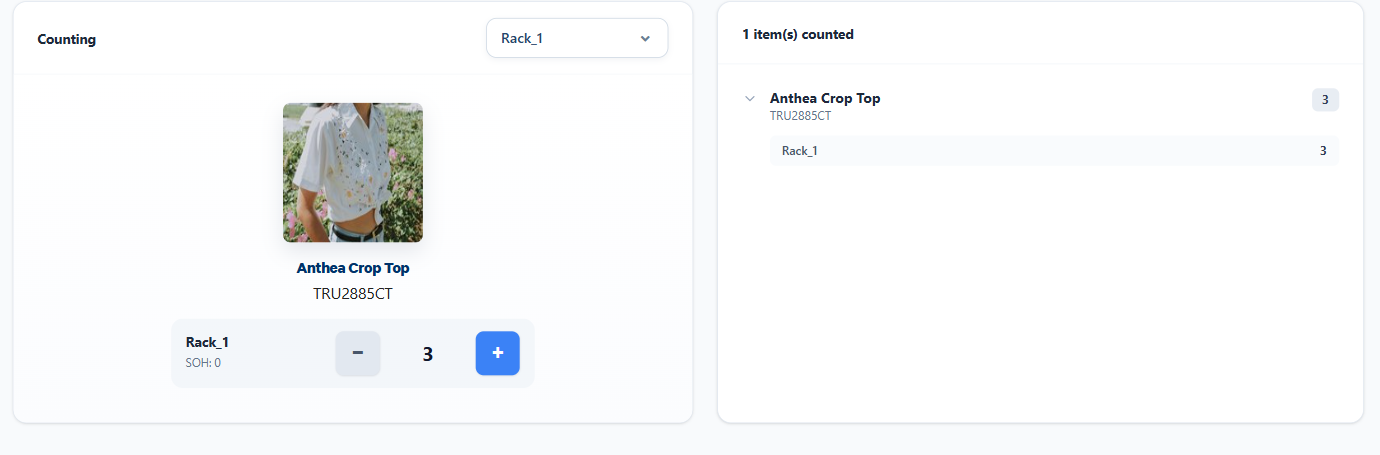
- Increase or decrease to match the quantity you counted, or type the number. If a product is not there, select Count as 0 to record there was no stock in that location. To undo this, select Remove 0 count.
- For a product with batch or serial tracking, scan or select the batch or serial number before you count it. Each serial number can only be counted once.
- Select Save progress at any time to keep your counts or Complete if you have finished counting. Completed stocktake counts are sent to the manager to review the variances and complete the adjustments.
If a product does not appear, check that it is set up in Cin7 Omni with the correct barcode or SKU. For a partial stocktake, also check that the product's location is one of the selected locations.