Overview
When counting is complete, a stocktake moves to Review. You can compare the counted quantities against the stock on hand, correct any counts that look wrong, and choose which uncounted items to include. Approving the review creates stock adjustments that update your inventory levels and locations to match your stocktake. Finally, you can review the unit costs for each item and adjust if needed before completing your stocktake.
Administrators or users with the Manager permission can review variances and complete adjustments.
Review variances
On the stocktake list, find a stocktake with the status Review and select Review. A summary across the top gives you the number of zones, completed counts, variances (and sub-totals), and the variance amount (unit cost × variance).
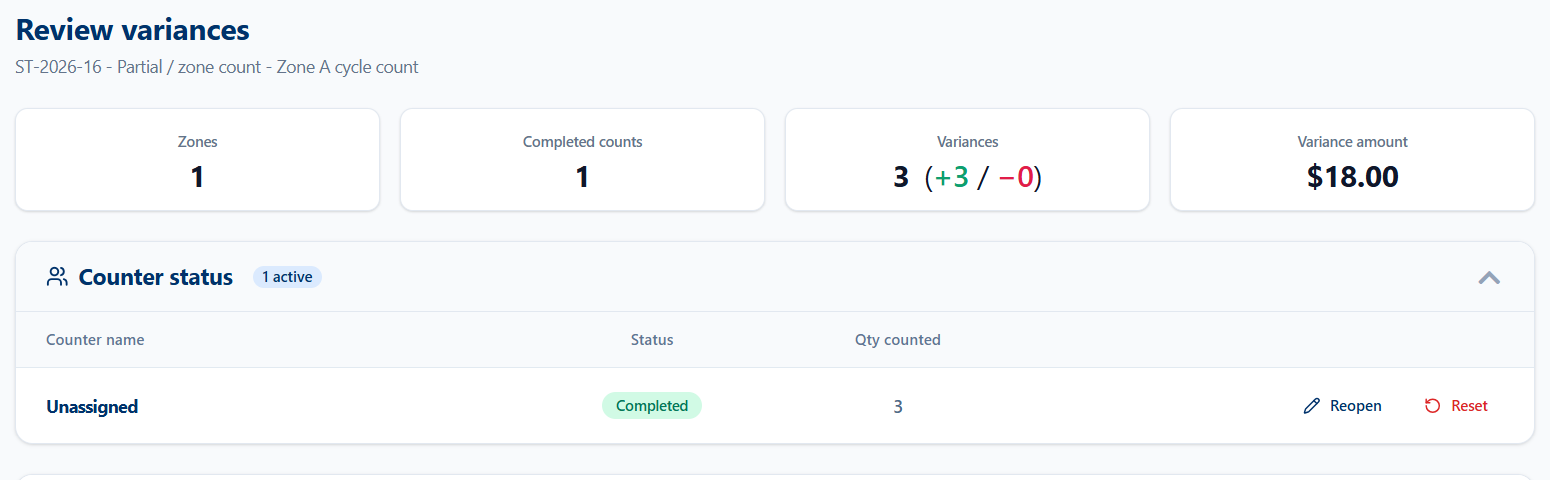
Manage counters
The Counter status helps you track your stocktake progress, showing each counter, whether their count is Open or Completed, and the quantity counted. If someone has completed their count, they can't change or continue counting in the stocktake. However, you can choose to:
-
Reopen
This will allow the counter to edit and change their existing counts or keep counting. Useful if they counted the wrong number of products or accidentally completed their counts. This keeps all existing counts. -
Reset
This will allow the counter to start counting again by removing all counts. Useful if you need to delete their count and start over. This will remove all existing counts.
Review the counted items
On the Counted tab, you see every product that was counted and how its count compares to the Stock on hand. Search by SKU, product, location, or counter. If a count looks wrong, edit the counted quantity here before you approve.

Review the uncounted items
On the Uncounted tab, you see products that are in the selected locations but were not counted. Select a product and add the inventory quantity in Counted to include it in your adjustments. Anything you leave unselected is not adjusted.
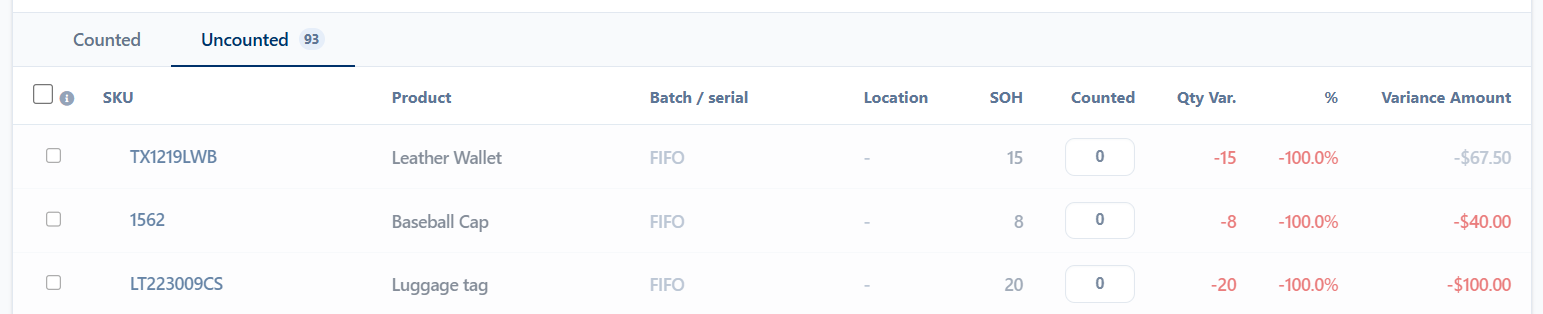
Select Save to keep your changes as you go, or Back to list to leave without saving.
Approve the review
When the review looks right, approve it to create the stock adjustments.
- Select Approve.
-
Check the summary of what will change: the quantities and number of SKUs going up and down, any included uncounted products, and the total variance amount.
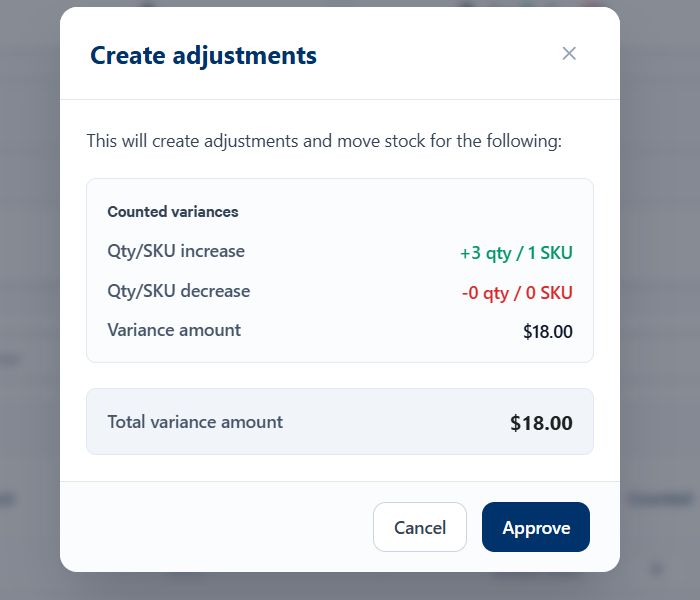
- Select Approve to create the adjustments. If there are no differences between the counted quantities and the stock on hand, no adjustments are needed and the stocktake is marked as complete.
When it finishes, the stocktake moves to Finalize, ready for you to complete the adjustments.
Complete adjustments
You can either complete a stocktake after a review, or open a stocktake from the list page by selecting Finalize.
The summary at the top shows how many adjustments will be made and their total effect on your stock value, so you can see the size of the change before you complete it.
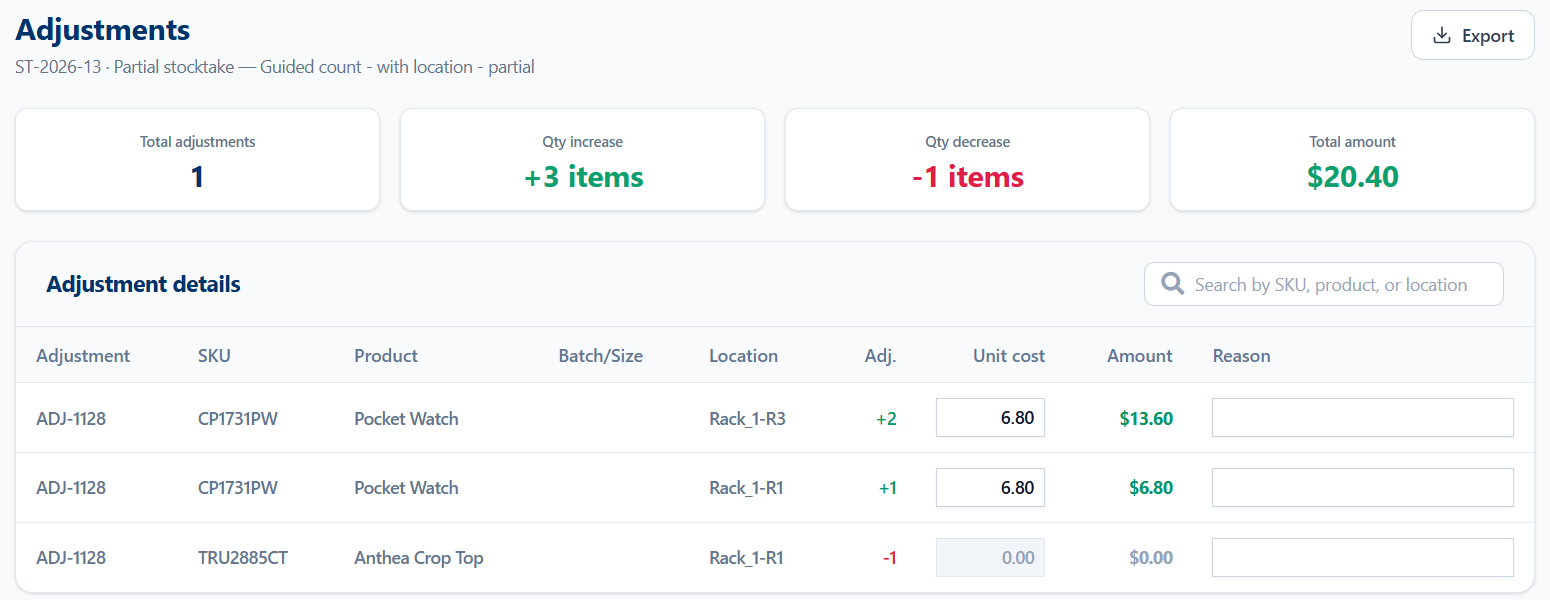
- Review each product's Unit cost for each location. Edit any incorrect unit costs so that the final adjustment value is correct.
- Enter a Reason for each line.
- WMS Stocktake will automatically record you as the Approver and add the Approval date. You can optionally add any Notes for extra details about the adjustments.
- Select Complete, then select Complete again to confirm. You can also choose to Save at any time to keep your changes.
The adjustments are written to your inventory and the stocktake moves to Completed. On a completed stocktake you can select View adjustments to see the results, or Export to download the details.