Overview
You can customize your documents with the inline WYSIWYG editor or with HTML and CSS. Both options provide limitless scope as to the appearance of your documents.
You could start by tweaking an existing document, use the boilerplate provided below as a skeleton to build on, or completely start from scratch, it's up to you.
Administrator rights required
Edit with the WYSIWYG editor
The easiest way to customize a document without diving into the code is to use the WYSIWYG
(what you see is what you get) editor. This means that you are able to use a familiar interface to change the document you see on screen.
This is particularly useful for making small cosmetic changes to the current document templates - like making text bold or increasing the font size.
-
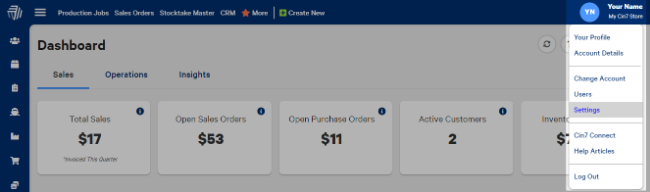
Select the user menu and then select Settings.
-
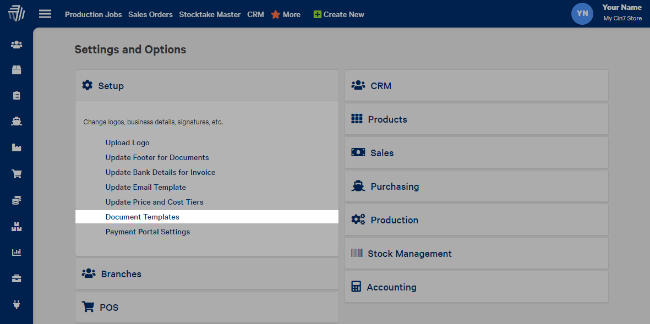
From the Setup, select Document templates.
-
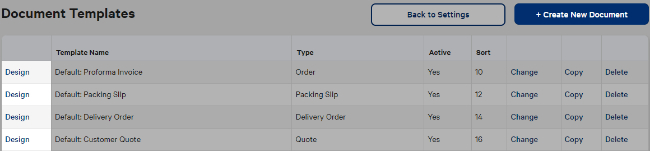
Choose the document you want to convert to customers, and select Design. Alternatively, you could create an entirely new document by selecting Create New.
- Within the document editor, select the Custom tab.
-
Select Convert Template to Custom to enable the editor. Please note saving a custom template will disable the standard configuration tools unless you revert back to an older save.
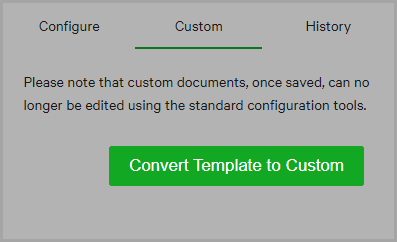
- Select OK.Additional tools will appear at the top of the document which you can use to enable your document. You can also edit with HTML.
- Once you are satisfied with your changes, select Save.
To add or switch the document template after you have finished updating them, go to the settings of the module you want to update.
Working with variables
You'll notice that there are a number of fields enclosed in % symbols. These fields are variables that will populate with real data when you print/email the documents.
To insert new variables, you can simply start typing % and a drop-down will appear with a list of variables.
Edit with HTML
To get complete control over your documents, you can use HTML and CSS. Although this requires some knowledge, it is easy to learn the basics of HTML and CSS through sites like Codecademy.com. There are also a number of tools like Adobe's Brackets that make it easy to edit code.
If you add an image larger than 2048 pixels to a document template, Cin7 Omni will resize the image to 2048 pixels.
The rest of this article assumes some knowledge of HTML and CSS. We will use a boilerplate example below, and it is a great place to start making your own invoice documents.
Convert document template to custom
After you have converted a document to custom, you can click  Code View to edit the HTML.
The below HTML provides a basic idea of the structure of a document.
<header> <div> <h1>Tax Invoice</h1> </div> <div> <img src="https://staging.cin7.com/webfiles/CityRoadTradingNZ/layouts/images/EditorUpload/636567164336916359.png" border="0" style="height: 60px;" alt="" class="fr-fic fr-dii"> </div> </header>
<section class="details"> <div class="to"> <table> <tbody> <tr> <th>To</th> <td>%%ATT:BillingCompany%%</td> </tr> <tr> <th>Invoice No.</th> <td>%%ATT:InvoiceNo%%</td> </tr> <tr> <th>Reference</th> <td>%%ATT:TransactionRef%%</td> </tr> <tr> <th>Issued</th> <td>%%ATT:InvoiceDate%%</td> </tr> </tbody> </table> </div> <div class="from"> <table> <tbody> <tr> <th>From</th> <td>Cin7 Omni Ltd.</td> </tr> <tr> <th></th> <td>Level 8, 7 City Road</td> </tr> <tr> <th></th> <td>Auckland</td> </tr> <tr> <th></th> <td>Grafton</td> </tr> <tr> <th></th> <td>1010</td> </tr> </tbody> </table> </div> </section>
<section class="line_items"> <table> <thead> <tr> <th style="width:50%;">Description</th> <th>Quantity</th> <th>Unit Price</th> <th>Tax</th> <th>Amount AUD</th> </tr> </thead> <tbody> <tr> <td>%%Loop:Name%%</td> <td>%%Loop:Qty%%</td> <td>%%Loop:UnitPrice%%</td> <td>%%Loop:LineItemTaxTotal%%</td> <td>%%Loop:Total%%</td> </tr> </tbody> </table> </section>
<section class="totals"> <table> <tbody> <tr> <th>Subtotal</th> <td>%%ATT:SubTotal%%</td> </tr> <tr> <th>Total Tax</th> <td>%%ATT:TaxAmount%%</td> </tr> <tr> <th>Total AUD</th> <td>%%ATT:GrandTotal%%</td> </tr> <tr class="total_due"> <th>Total Due</th> <td>%%ATT:Outstanding%%</td> </tr> </tbody> </table> </section>
<section class="payment_terms"> <h3>Due Date: <span>%%ATT:DueDate%%</span></h3></section>
<footer> <div> <h2>Terms and Conditions</h2> <p>Please see our website for full <a href="www.google.com">terms and conditions.</a></p> </div> <div class="tandc"> <h2>Payment Options</h2> <p>Please send bank transfers to:
Cin7 Omni Ltd. 11-1111-11111-11</p> </div> </footer>
Line items, payments, and backorders
There are some parts of your document where you are not just representing single variables but
instead looping through numerous rows of data.
The most obvious example of this is line items. Each line item should form a row in a table. By
enclosing your table rows in some magic fields, Cin7 Omni will loop through each line item and fill
your table with data for you.
Line items
Enclose your table rows in comments like the below:
- Table rows here -
Backorder items
For backorders, use the line items rows as above. Cin7 Omni will represent backordered items
provided the rows have been enclosed in comments like the below.
- Table rows here -
Payments
Payments should be enclosed in comments like the below, and use the payments variables
detailed at the bottom of this page.
- Table rows here -
Edit with CSS
Finally, to make your documents look professional, you should apply CSS to the document.
Copy and paste the below styles into the Custom CSS Style box to see the effect of stylesheets
on the example document page.
@import url('https://fonts.googleapis.com/css?family=Lora|Open+Sans'); / FONTS AND COLOURS /
td, p { font-family: 'Open Sans', sans-serif; }
h1, h2, h3, th { font-family: 'lora', serif; }
line_items th { border-bottom: 1px #efefef solid; }
line_items tbody tr:nth-child(even) { background: #efefef; } / this adds alternate shading to the table rows /
totals tr:last-child { border-bottom: 1px solid #efefef; border-top: 1px solid #efefef; } / this adds lines under the last line of the totals total due /
totals table { border-collapse: collapse; }
/ ALIGNMENT /
header, footer, details, totals { display: flex; justify-content: space-between; margin: 50px 20px 50px 20px; }
from { margin-right: 180px; }
details table, totals table { text-align: left; }
line_items table { border-collapse: collapse; width: calc(100% - 40px); text-align: left; margin-left: 20px; margin-top: 150px; margin-bottom: 50px; }
totals { justify-content: flex-end; }
payment_terms { margin: 50px 20px 50px 20px; }
When styling elements, beware of user IDs or classes that already have CSS definitions on the print page that could cause conflicts.
#document and .line item are used in Cin7 Omni's document templates, so are worth avoiding.
Variables
The following is a list of variables available to use in your documents. Contact Cin7 Omni Support for additional variables.
Variable
| %%ATT:BillingAddressDetails%% | BillingAddress | Order Info |
|---|---|---|
| %%ATT:BillingCompany%% | BillingCompany | Order Info |
| %%ATT:BillingRecipient%% | BillingRecipient | Order Info |
| %%ATT:CreatedBy%% | CreatedBy | Order Info |
| %%ATT:CurrencyName%% | CurrencyName | Order Info |
| %%ATT:CustomerRef%% | CustomerRef | Order Info |
| %%ATT:AcceptanceDate%% | DateAccepted | Order Info |
| %%ATT:CloseDate%% | DateClosed | Order Info |
| %%ATT:CompletedDate%% | DateCompleted | Order Info |
| %%ATT:DueDate%% | DateDue | Order Info |
| %%ATT:ExpiryDate%% | DateExpiry | Order Info |
| %%ATT:InvoiceDate%% | DateInvoiced | Order Info |
| %%ATT:Date%% | DateCreated | Order Info |
| %%ATT:DeliveryAddressDetails%% | DeliveryAddress | Order Info |
| %%ATT:DeliveryCompany%% | DeliveryCompany | Order Info |
| %%ATT:DeliveryInstructions%% | DeliveryInstructions | Order Info |
| %%ATT:DeliveryRecipient%% | DeliveryRecipient | Order Info |
| %%ATT:Discount%% | Discount | Order Info |
| %%ATT:DiscountDescription%% | DiscountDescription | Order Info |
| %%ATT:DocumentHeading%% | DocumentHeading | Order Info |
| %%ATT:Email%% | Order Info | |
| %%ATT:Fax%% | Fax | Order Info |
| %%ATT:DeliveryCost%% | FreightCharge | Order Info |
| %%ATT:FreightDescription%% | FreightDescription | Order Info |
| %%ATT:GrandTotal%% | GrandTotal | Order Info |
| %%ATT:InvoiceNo%% | InvoiceNo | Order Info |
| %%Loop:ActualQty%% | LineItem:ActualQuantity | Line Item |
| %%Loop:Barcode%% | LineItem:Barcode | Line Item |
| %%Loop:Code%% | LineItem:Code | Line Item |
| %%Loop:DiscountPercent%% | LineItem:DiscountPercent | Line Item |
| %%Loop:SerialNumberLocationTable%% | LineItem:DynamicLocations | Line Item |
| %%Loop:ExchangeQty%% | LineItem:ExchangeQuantity | Line Item |
| %%Loop:ItemDiscount%% | LineItem:LineDiscount | Line Item |
| %%Loop:LineNote%% | LineItem:LineNote | Line Item |
| %%Loop:OptionsWithoutSizes%% | LineItem:OptionswithoutSizes | Line Item |
| %%Loop:Name%% | LineItem:ProductName | Line Item |
| %%Loop:Options%% | LineItem:ProductOptions | Line Item |
| %%Loop:Qty%% | LineItem:Quantity | Line Item |
| %%Loop:SerialNumbers%% | LineItem:SerialNumber | Line Item |
| %%Loop:SerialNumberQtys%% | LineItem:SerialNumberQty | Line Item |
| %%Loop:SpecialDescription%% | LineItem:SpecialPricing | Line Item |
| %%Loop:FixedLocations%% | LineItem:StaticLocations | Line Item |
| %%Loop:SupplierCode%% | LineItem:SupplierCode | Line Item |
| %%Loop:LineItemTaxRate%% | LineItem:TaxRate | Line Item |
| %%Loop:LineItemTaxTotal%% | LineItem:TaxTotal | Line Item |
| %%Loop:Total%% | LineItem:Total | Line Item |
| %%Loop:UnitDiscount%% | LineItem:UnitDiscount | Line Item |
| %%Loop:UnitPrice%% | LineItem:UnitPrice | Line Item |
| %%Loop:UnitPriceText%% | LineItem:UnitPriceText | Line Item |
| %%Loop:Variations%% | LineItem:Variations | Line Item |
| %%ATT:Mobile%% | Mobile | Order Info |
| %%ATT:Outstanding%% | Outstanding | Order Info |
| %%Loop:Amount%% | Payment:Amount | Payments |
| %%Loop:Comment%% | Payment:Comment | Payments |
| %%Loop:Date%% | Payment:Date | Payments |
| %%Loop:Method%% | Payment:Method | Payments |
| %%Loop:Ref%% | Payment:Reference | Order Info |
| %%ATT:PaymentDueDate%% | PaymentDueDate | Order Info |
| %%ATT:PaymentTerms%% | PaymentTerms | Order Info |
| %%ATT:PaymentTermsWithHeader%% | PaymentTermswithHeader | Order Info |
| %%ATT:Phone%% | Phone | Order Info |
| %%ATT:ProductCost%% | ProductTotal | Order Info |
| %%ATT:ProjectName%% | ProjectName | Order Info |
| %%ATT:Spacer%% | Spacer | Order Info |
| %%ATT:SubTotal%% | SubTotal | Order Info |
| %%ATT:Surcharge%% | Surcharge | Order Info |
| %%ATT:SurchargeDescription%% | SurchargeDescription | Order Info |
| %%ATT:TaxName%% | TaxName | Order Info |
| %%ATT:TaxRate%% | TaxRate | Order Info |
| %%ATT:TaxAmount%% | TaxTotal | Order Info |
| %%ATT:TotalPaid%% | TotalPaid | Order Info |
| %%ATT:TotalQty%% | TotalQuantity | Order Info |
| %%ATT:Carrier%% | Carrier | Order Info |
| %%ATT:TrackingCode%% | TrackingCode | Order Info |
| %%ATT:TransactionRef%% | TransactionReference | Order Info |
FAQs
Can Document templates be converted from portrait to landscape?
Yes it can, please contact Support.
Are you a UK customer and need the Picking Slip/Sales Order document templates to meet Brexit requirements?
Yes it can, please contact Support.
Custom fields to be added to documents?
Yes it can, please contact Support.
How do I remove web links from my invoice document?
You can remove these links when you are printing a document by editing your browser printing settings. For example, in Google Chrome, you would uncheck Header and Footer.